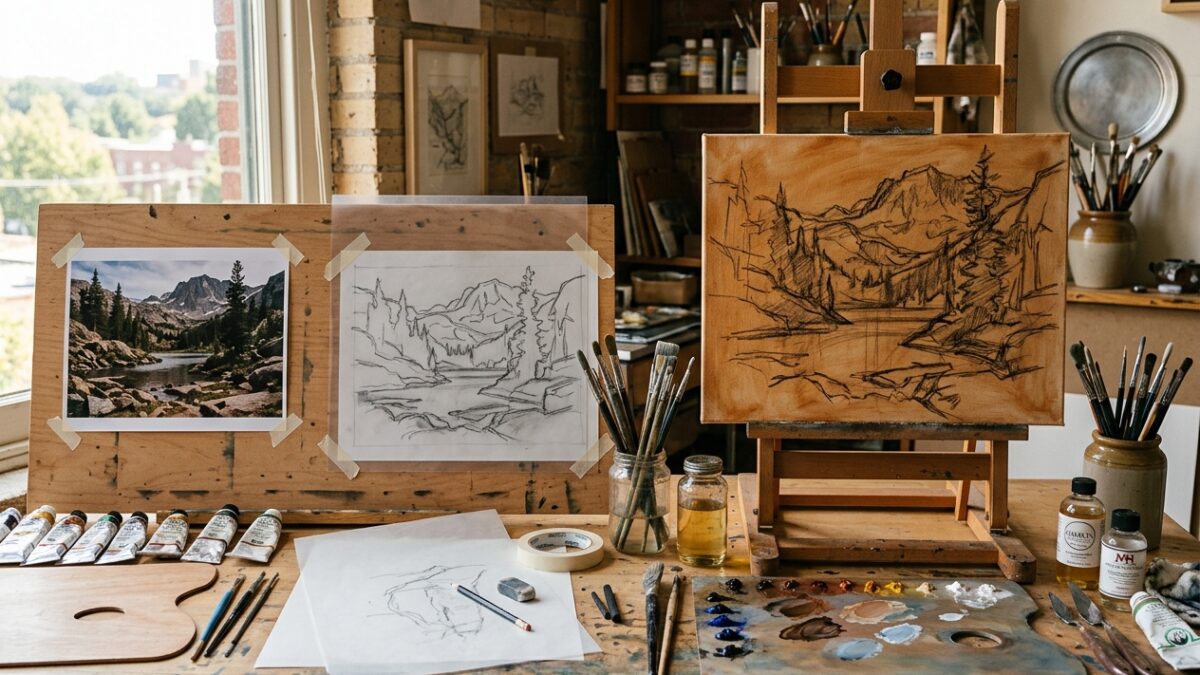
From Photo to Canvas: The Step-by-Step Atelier Prep Workflow for Modern Painters
Master the complete 4-stage atelier preparation pipeline: palette extraction, contour tracing, grid scaling, and imprimatura underpainting…
One of the greatest frustrations painters face when planning a palette digitally is that computer screens use additive RGB light mixing. On a monitor, mixing yellow and blue light creates a washed-out light gray, whereas in traditional painting with acrylics, oils, or watercolors, yellow and blue pigment particles absorb red and blue wavelengths, leaving rich, vibrant green (subtractive mixing). Pintado’s Color Mixer solves this problem by simulating physical subtractive pigment physics directly in your browser. Whether you are seeking the exact recipe to tone down a saturated cadmium hue or need to extract a harmonious 6-color palette from a reference photo, this tool provides instant, realistic visual feedback alongside precise HEX, RGB, and HSL values. All image and color processing occurs 100% client-side in your device’s memory, ensuring total privacy.
#2F6B34
rgb(47, 107, 52)
hsl(125°, 39%, 30%)
Computer monitors use additive RGB light (mixing yellow and blue makes light gray). Pintado simulates subtractive pigment physics (RYB), reproducing how acrylics, oils, and watercolors actually interact on paper.
Drop your reference photo here or click to browse
JPG, PNG, or WebP. Processed entirely in browser memory.Select your starting pigments using the color pickers or click on our curated studio pigment buttons (e.g. Cadmium Yellow, Ultramarine Blue, Burnt Sienna). Adjust the ratio sliders to simulate adding more or less paint from your palette knife.
Observe the mixed swatch preview. The algorithm identifies the nearest traditional artist pigment name (e.g., Sap Green, Olive Green, Warm Ochre) and computes copyable HEX, RGB, and HSL values for seamless transfer into your digital art software.
Click the “Photo Palette Extractor” tab and drop your reference image onto the canvas. The in-browser Median-Cut clustering algorithm identifies the six most harmonious dominant colors, which you can copy individually or download as an elegant PNG swatch card.
Master the complete 4-stage atelier preparation pipeline: palette extraction, contour tracing, grid scaling, and imprimatura underpainting…
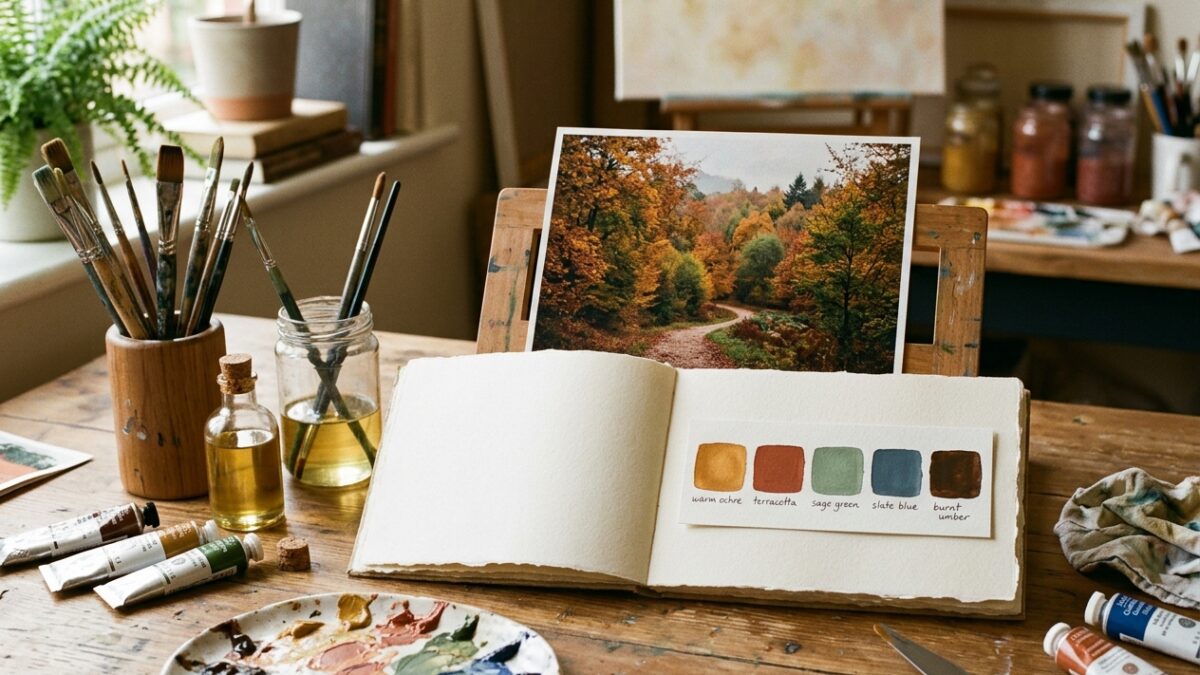
Overwhelmed by too many paint tubes? Learn how to extract a harmonious 5-color limited palette from…
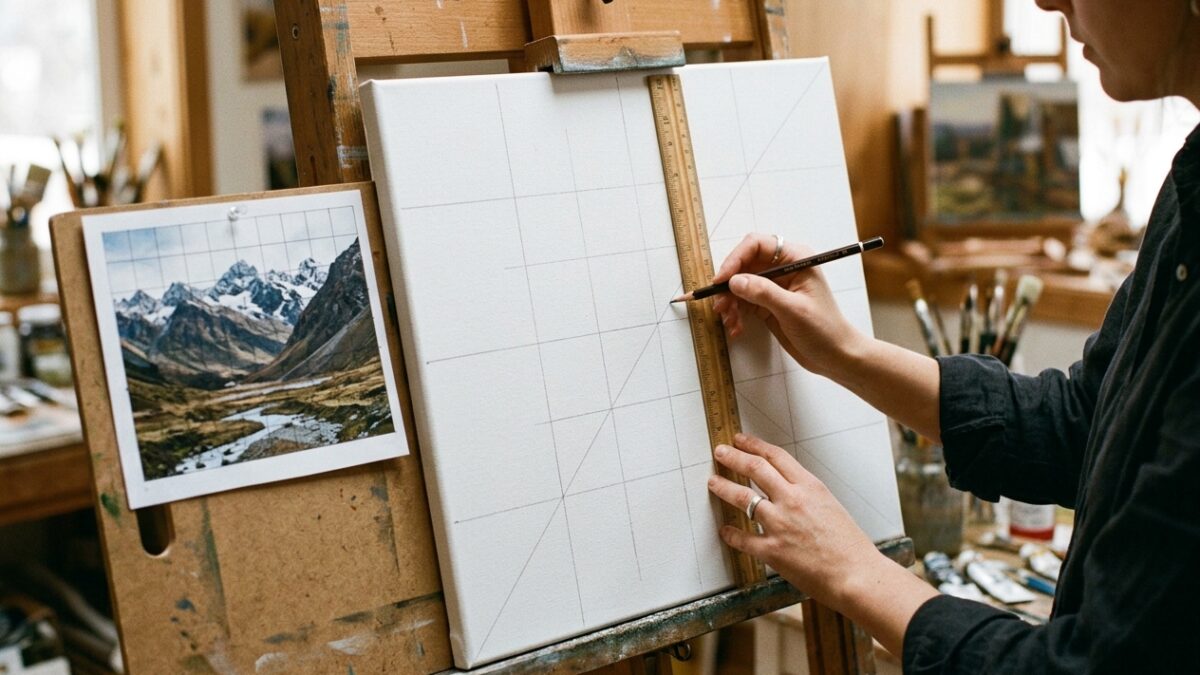
Master the grid method for drawing and canvas painting. Learn exact ratio formulas, grid density rules,…